
 One of the best kept secrets in our industry is the line of products made by iSpring. Their authoring tools have a reputation for solid-engineering. They provide lots of functionality for creating online PowerPoint courses in Flash. And they are priced to fit most budgets. (Note: This article hasn’t been updated so the latest product may now differ from this description.)
Getting Started
After installation, the iSpring Suite toolbar displays as a tab in the PowerPoint ribbon. You’ll find all the tools here for publishing, managing the presentation, recording media, adding SWF files, building quizzes and creating interactions.

Managing the Slides
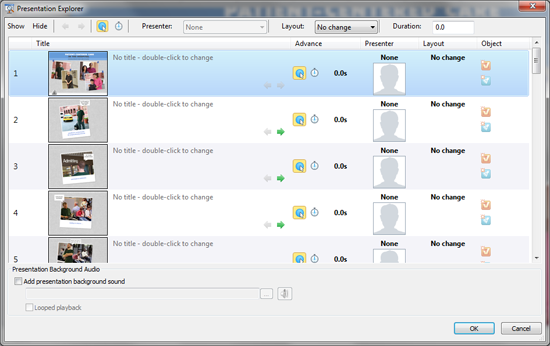
When working in iSpring Pro, you manage the course properties through the Presentation Explorer shown below. Here you can modify the slide title, hierarchy, visibility, method of advancing, duration, and layout. You can also add background music and create a looping playback.
Recording and Adding Media
As to media, you can record video through a webcam, record and import audio and add a YouTube video if your course is online on a public server.
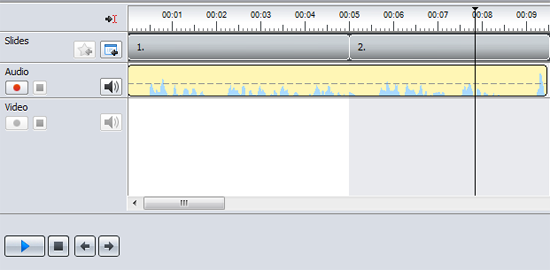
Most of the media functionality is handled through the Manage Narration tool. Here you’ll find an intuitive interface for expanding or contracting the narration along the timeline to place things where you want. This makes it easy to let one audio file spread across several slides (see below). You can also sync an audio track with video and sync with actions on the screen.
Although you can record a webcam video and add a published Flash file, getting other video formats to work is a little tricky. You can import AVI, WMV, MPG, and MP4 files through the Manage Narration tool or through PowerPoint’s Insert Menu. I believe the latter is your best option. But you also need to install a free codec pack to make these video formats run in your published course.
The iSpring knowledge base recommends installing the free FFMPEG or K-Lite software. If your courses require lots of video, I suggest downloading iSpring’s free trial version to see if you can make this work. I’d say this is iSpring Pro’s weakest point, though if you don’t need video it’s not an issue. Although I realize there are licensing issues, I’m hoping a future release will handle FLV video with a built-in codec.
Building Interactions
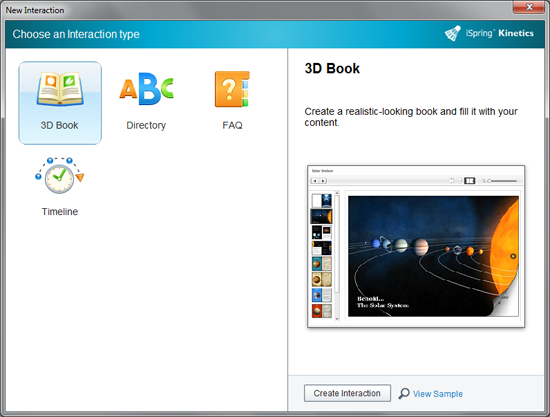
Kinetics is iSpring’s interaction builder. When you buy the suite, it’s integrated into the toolbar but also works as a standalone tool. So far it has four interactions. It could use just a few more.
The 3D Book creates one of those Flash books where you drag to turn a page. The Directory allows you to create references, resources and glossaries. This seems quite useful for providing additional information for learners to explore on their own. The FAQ interaction can be used for any type of question and answer content. And finally, the Timeline interaction allows you to add content in a chronological format.
Quizzes
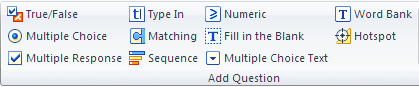
iSpring QuizMaker is part of the the suite or works as a standalone test and survey creation tool. You’ll probably appreciate the variety of question types it provides. In addition to the standard ones you’d expect, you’ll find quite a few others, shown in the toolbar below.
Player
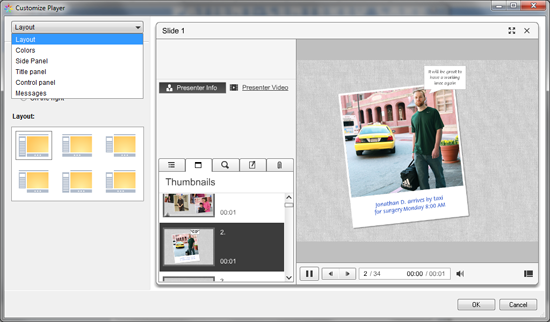
The Streamline Player is the skin and set of controls where playback occurs. You can access it through the Publish button. Here you’ll find numerous settings and options for customizing the look and feel. I like the layout and organization of this dialog window. It’s easy to understand and use, with a drop down menu in the upper left for selecting each category of options.
Publishing
iSpring Pro is one of many authoring tools that convert PowerPoint to SWF (the Flash format). At first, the publishing options seem to include what you would expect: publish to CD, Web, iSpring Online or to a Learning Management System with the standard SCORM options. On closer examination, though, you’ll find more unique options, such as publishing each slide as a separate SWF file; generating an EXE; and access to a variety of compression and protection settings.
iSpring Suite has much of the functionality that many eLearning designers and developers are seeking. It’s a a good place to start creating things for your portfolio. You can find it at iSpring Solutions and you can download the free version at iSpring Free.
We have tried iSpring for custom eLearning production here at eLearning Company and I have only positive feedback to share. Keep doing the great job and thank you for enabling us to produce outstanding custom eLearning products for our customers!
Thanks for your comment, Himmmat. I like both products.
PPT to HTML5 conversions are superb. That alone makes ispring preseter and suite more useful that Articulate products. Also, capturing of PPT triggers – one more feather on the ispring cap.
I’m sorry, I have not used the newer versions. Try downloading a trial, Kai.
Best,
Connie
Hi Connie,
did you have the chance to make some experiences with one of the latest versions of iSpring? I am curios how the latest versions work …
Best Regards,
Kai
Hi Howard,
I don’t know the answer to your question, so check with iSpring tech team. If it won’t work, try Storyline or Captivate, which provide more functionality.
Connie
I have developed a trivia based board game and would like to transfer the concept to an electronic version. There aren’t many programs that can do what I need without a lot of coding. This program looks like it will do most of what I need. The only problem is that I would like to have a feature where game pieces are inserted into a game board when a question is answered correctly. Is it possible to do this somehow…easily?
Hi Connie,
I’d just like to thank you for the time and effort you put into this great review. The info and perspectives you share are very helpful and much appreciated as I’m exploring new tools to support our elearning development.
Best, Dennis
Hi Misha,
I’m sorry, I haven’t used it for mobile. I’m hoping some readers can share their experience here.
Connie
Connie, and all!
I am currently evaluating iSpring for potential use by http://www.sweetrush.com, and I wonder what insights you guys can provide on quality and breadth of mobile distribution.
It is pretty easy for me to evaluate functionality and flexibility of the tool, but it really takes thorough testing on multiple devices to find out how good of a job the tool does on different platforms.
Any feedback would be greatly appreciated!
Thank you.
Hi Jeannie,
I haven’t been in a position to choose a hosting environment for an LMS, so let’s put this question out to the public. Anyone have suggestions? You should also ask on some of the LinkedIn groups and to The eLearning Coach Facebook community.
What web hosting environment do you find best with a solid LMS for your eLearning websites?
Yes, you’re right, Andrew. But not everyone can afford it, so it’s good to know about alternatives. For more on Storyline, see A Tour of Articulate Storyline Demos.
Articulate Storyline has these features… and much more.
Hi Jeff,
I really like both products. Articulate is going to be more full-featured and has a strong community, but iSpring Pro has an amazing feature set for far less money. I actually like having both 🙂
Best,
Connie
Hmmm, interesting. It looks just like Articulate Studio which we use. Do you have any experience Articulate and if so how would you say they compare?
Thank you so much for bringing this to our attention, Joe. I’d known about it but forgot to mention. Appreciate it.
Connie
Connie,
I have been using iSpring for a couple of years now. There is an aspect of this product which makes it unique among PowerPoint to flash converters. Unfortunately, most reviewers seem to miss this feature.
iSpring supports “triggers”. That is, you can use PP’s triggered animations to do interactions with the learner. Most other products don’t support this capability, requiring the instructional designer to use hyperlinking which is far more limiting in terms of what a designer can do.
Some companies charge or offer separate products that provide triggered events, with iSpring a great deal of interactivity is included in the basic package